Skip to content

Accessing OpenType features

Featured Replies

This topic was imported from the Typophile platform

Former Typophile moderator Zara Vasquez-Evens has written an interesting article on Medium (https://medium.com/@CommandZed/thoughts-on-an-improved-opentype-ui-c6748...), prompted by the recent petition for a better user interface for accessing OpenType features in design software (http://ilovetypography.com/2014/10/22/better-ui-for-better-typography-ad...).

A few selected quotes:

What the sh*t is a Stylistic Set? Most of the discussions and UI mock-ups floating around of proposed UI solutions that I have seen, seem to be created by type designers, for expert users, i.e., people who know a thing or two about font technology. While every idea is valuable, there is a fundamental UI component that seems to be overlooked and that is nomenclature. There are differences in the language that type designers speak and the language that the broader design community speaks.

How are we planning to educate people on the complexities of font technologies and the features available to them? How can type designers and advocates for great typography better inform the general population on how to take advantage of a font’s potential?

We need tools that are dynamic, context-sensitive, and smart.

I, for one, would welcome a completely visual solution.

I, for one, would welcome a completely visual solution.
Me too. As far as the Stylistic Sets are concerned one would always need the typeface’s description or manual at hand to know what SS01 is able to do with a font.

  • Author

Yes, stylistic sets are one of the more opaque features available: you can’t figure them out even if you know the terminology.
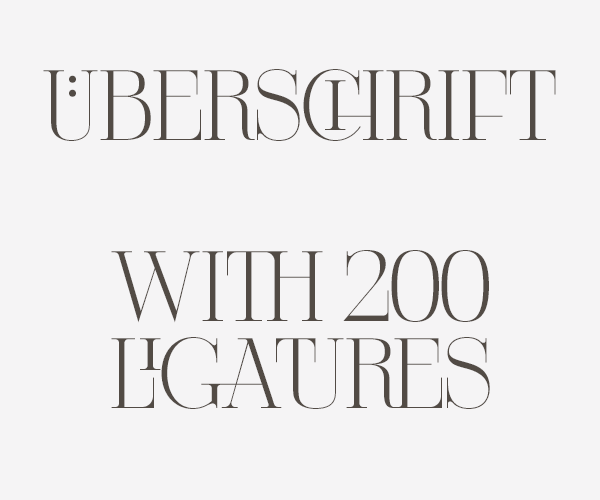
Even though, there could be some problem with a purely visual interface:

😉
Surely bad taste will not be stopped by a better user interface, but some OpenType features aren’t just visual, they also carry semantic meanings, which should be addressed.

Yes, good point about the semantic meaning. Absolutely. The meaning should be placed before the visual: ›Feature Final Forms – image‹

Create an account or sign in to comment

Important Information

We are placing functional cookies on your device to help make this website better.

Account

Navigation

Search

Search

Configure browser push notifications

Chrome (Android)
  1. Tap the lock icon next to the address bar.
  2. Tap Permissions → Notifications.
  3. Adjust your preference.
Chrome (Desktop)
  1. Click the padlock icon in the address bar.
  2. Select Site settings.
  3. Find Notifications and adjust your preference.