
Every keyboard used with Mac OS gives access to the full 8-bit character set for your region, for example Mac Roman. Many of these characters are essential for proper typographic typesetting, but they aren’t all printed on the keys itself. Here is how you can show and learn them:
- Open the System Preferences
- Open Keyboard
- Make sure Show input menu in menu bar is checked

Now you can easily access the Keyboard Viewer from the Mac OS menu bar. It will show you every character which you can access on your language-specific keyboard layout. All characters are accessed through up to four layers.
- just the alphanumeric key
- shift key (⇧) + alphanumeric key
- option key (⎇) + alphanumeric key
- shift key (⇧) + option key (⎇) + alphanumeric key
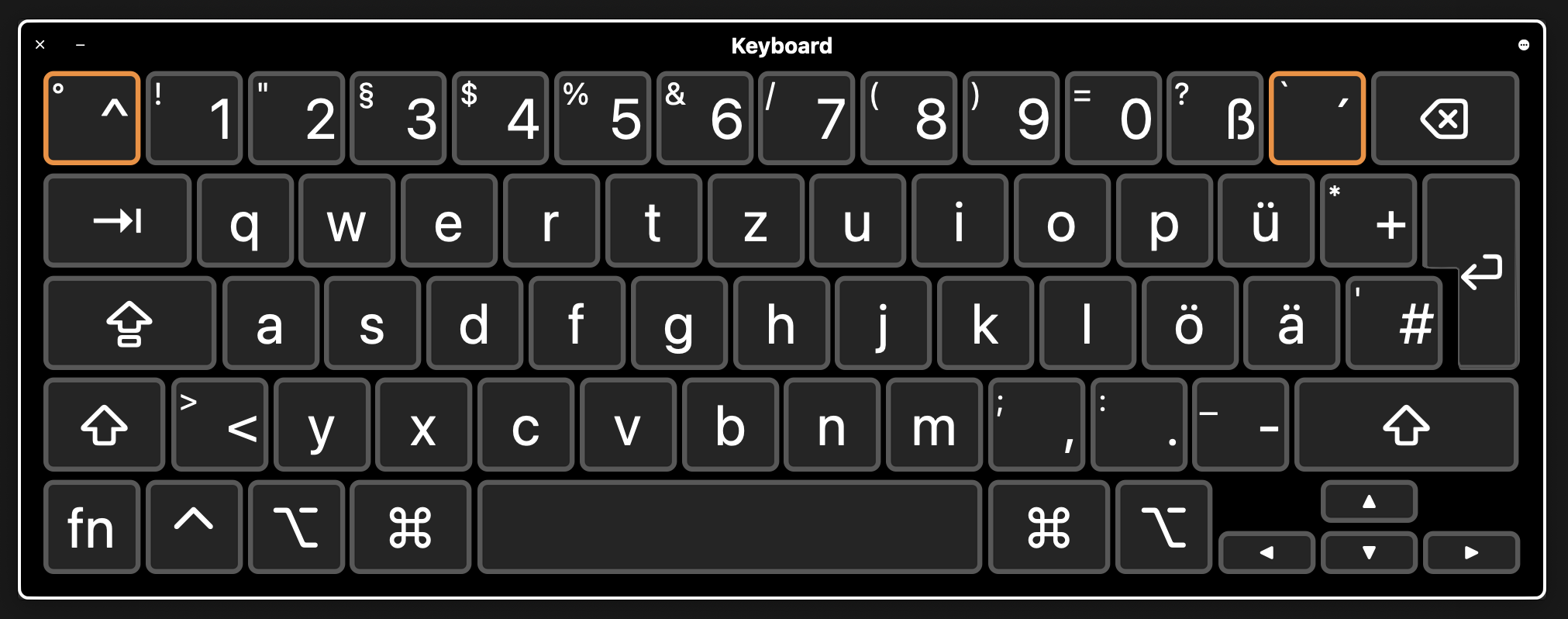
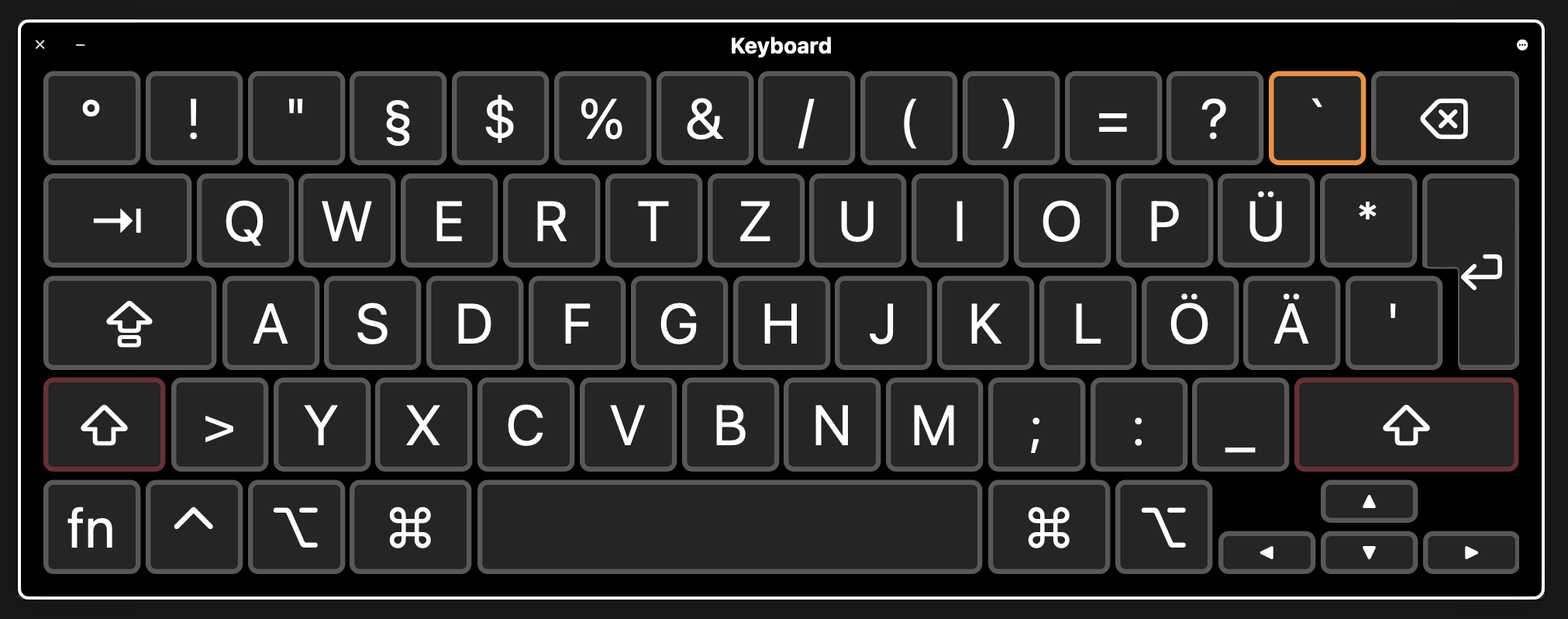
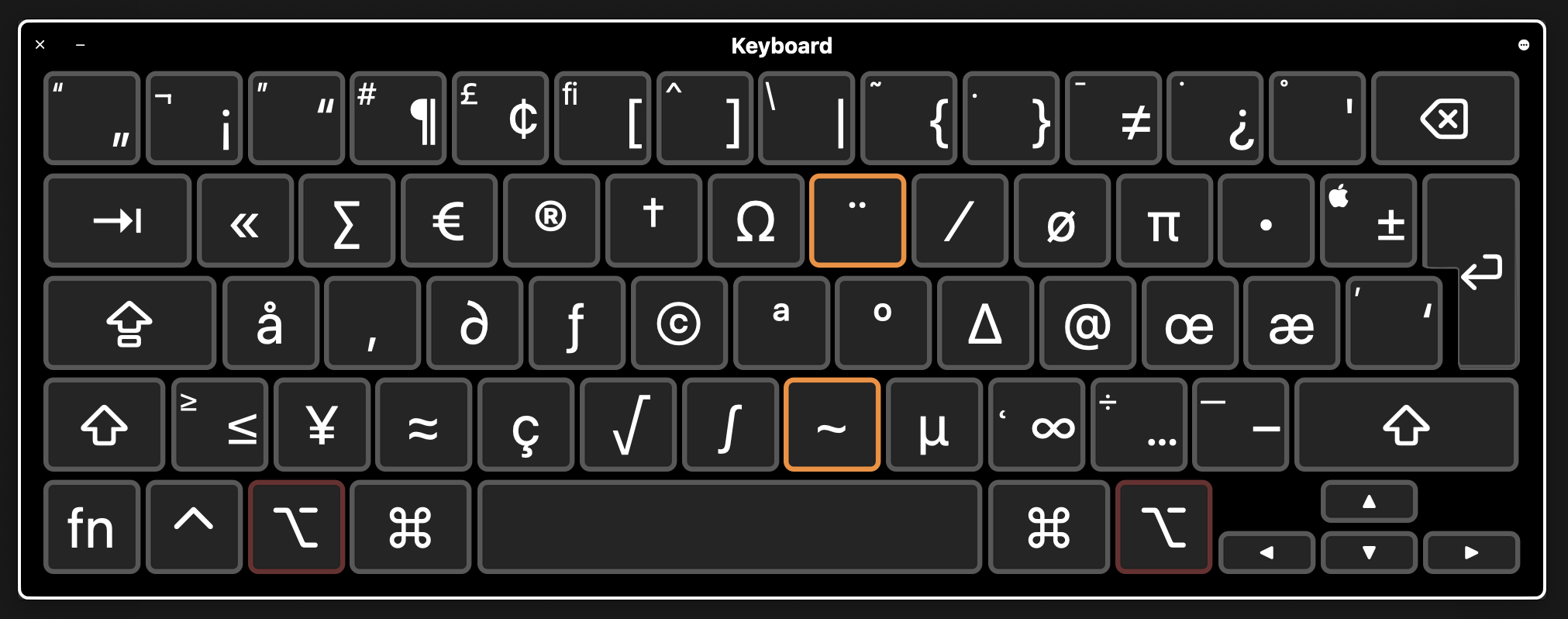
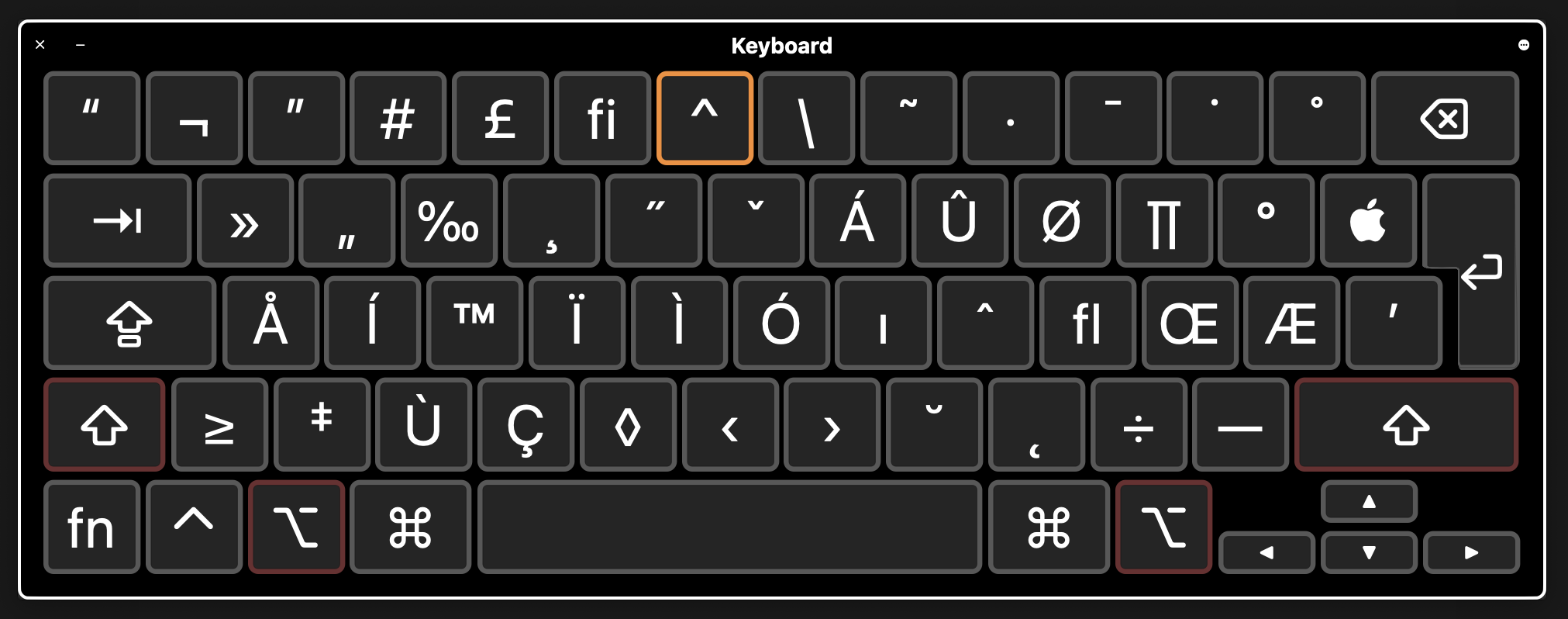
Make sure you understand the purpose of each character and don’t just go by the looks of it. For example: The apostrophe is not available on the first or second layer, even though there are keys with a similar-looking character printed on them. The various kinds of horizontal strokes (hyphen, en dash, em dash, minus …) can also cause confusion.
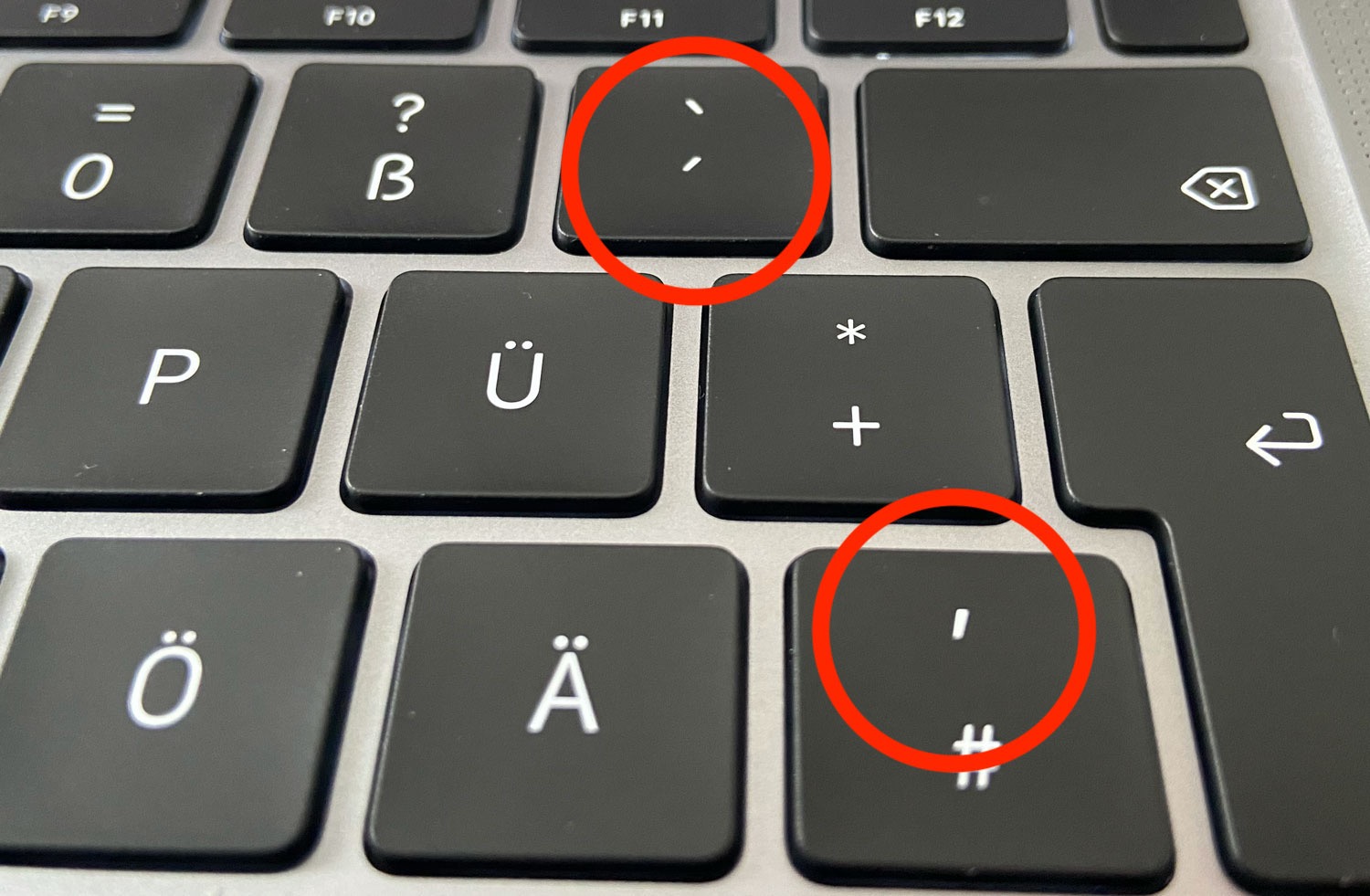
None of those is an apostrophe
Also, see those characters with the orange border in the Keyboard Viewer screenshots above? Those are so-called ‘dead keys’. They are meant to create characters with diacritical marks when combined with base characters. You first press the dead key and then a possible base character. So the ‘acute’ character plus the ‘a’ character creates the a-acute character: á. Remember that this will only work for combinations which actually exist in the standard character set. An ‘acute’ plus ‘m’ will not create an ‘m-acute’, since that is not an existing character.