



As an alternative to keyboard shortcuts, Apple devices—both desktop and mobile—support the press-and-hold function to access additional characters from the basic 8-bit character set. A typical use for this functionality is to access characters with diacritical marks, which are not printed on your keyboard.

As you can see in the animation above, a keyboard with a Western European layout will offer the characters ä, à, á, â, æ, ã, å and ā when you press and hold the ‘a’ key. You select the character you want by pressing the number that is shown below each character. If you don’t want to make a selection, press escape or just continue typing.
Keep in mind that the offered selection comes from the current keyboard layout and is therefore limited. The Western European layout won’t give you a choice of Eastern European characters for example. On Mac OS, you are also limited to letters. If you press and hold a punctuation character, it will just repeat that character until you release the key.
On iOS and iPad OS, ‘press and hold’ works with more than just letters. You can also use it for punctuation characters, currency signs and emoji.
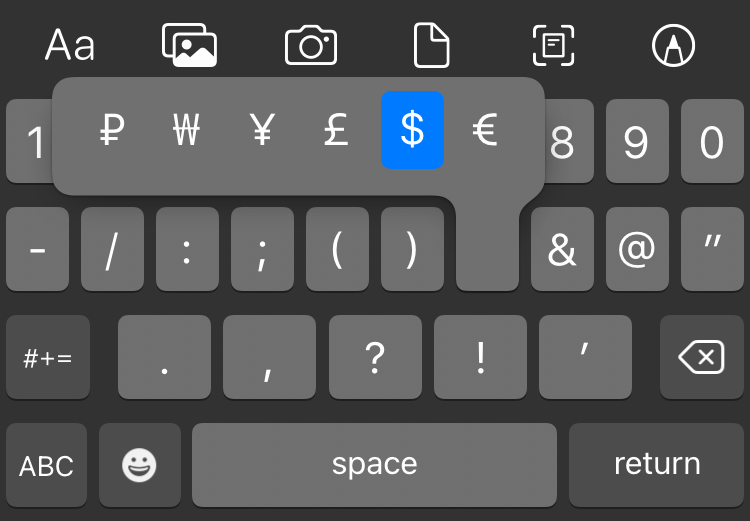
Press and hold your local currency sign on iOS to access more currency signs
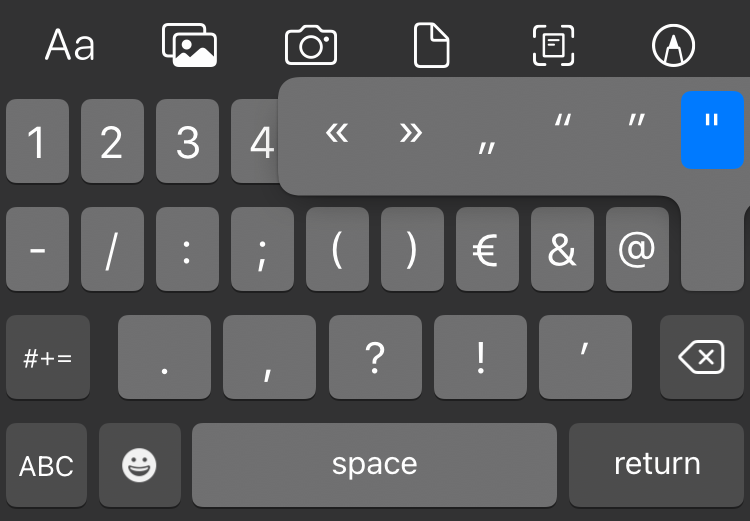
Access proper quotation marks for different languages
Unfortunately, the punctuation characters in Apple’s current system font San Francisco aren’t very distinctive.

