



Apple’s Character Viewer on Mac OS is a great tool to quickly access all sorts of characters: emoji, arrows and other pictograms, characters from foreign languages and so on. And you can easily access it with the shortcut control + command (⌘) + space bar.
The Character Viewer has a reduced and an extended view. You can switch between the two by clicking the Character Viewer icon in the top-right part of the Character Viewer.

The two modes of the Character Viewer
The list of categories in the extended view can be customized depending on your needs. You can also use the search field to quickly find characters. For example, if you want to see all emoji which have something to do with ‘tennis’, just add ‘tennis’ to the search field. You can also search for Unicode names.
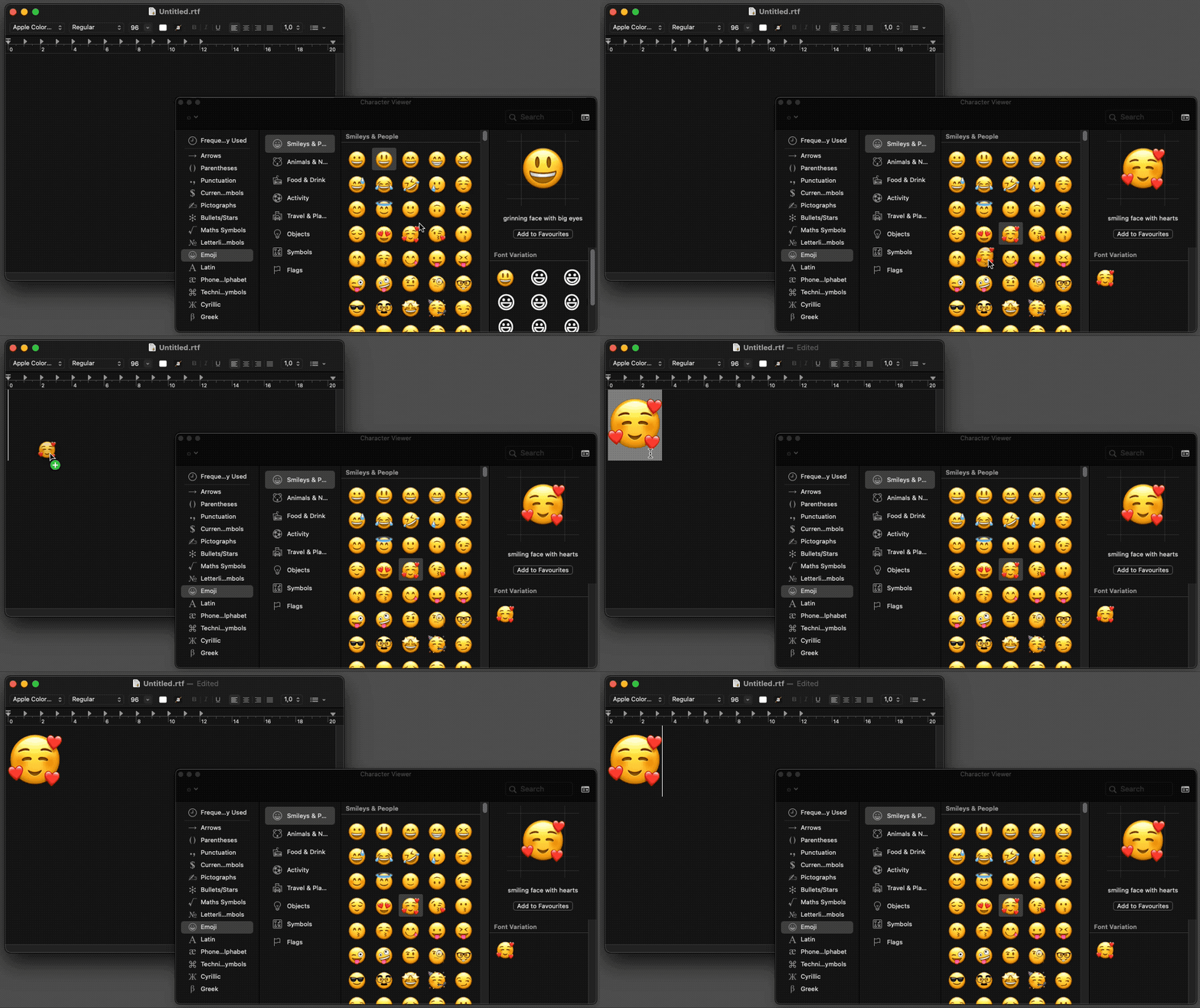
If you want to use a character shown in the Character Viewer you can double-click on it or drag it out to your application.
The iOS virtual keyboard also provides access to a character viewer with a search bar, but it is limited to emoji and can be access by clicking the virtual key showing a smiley.
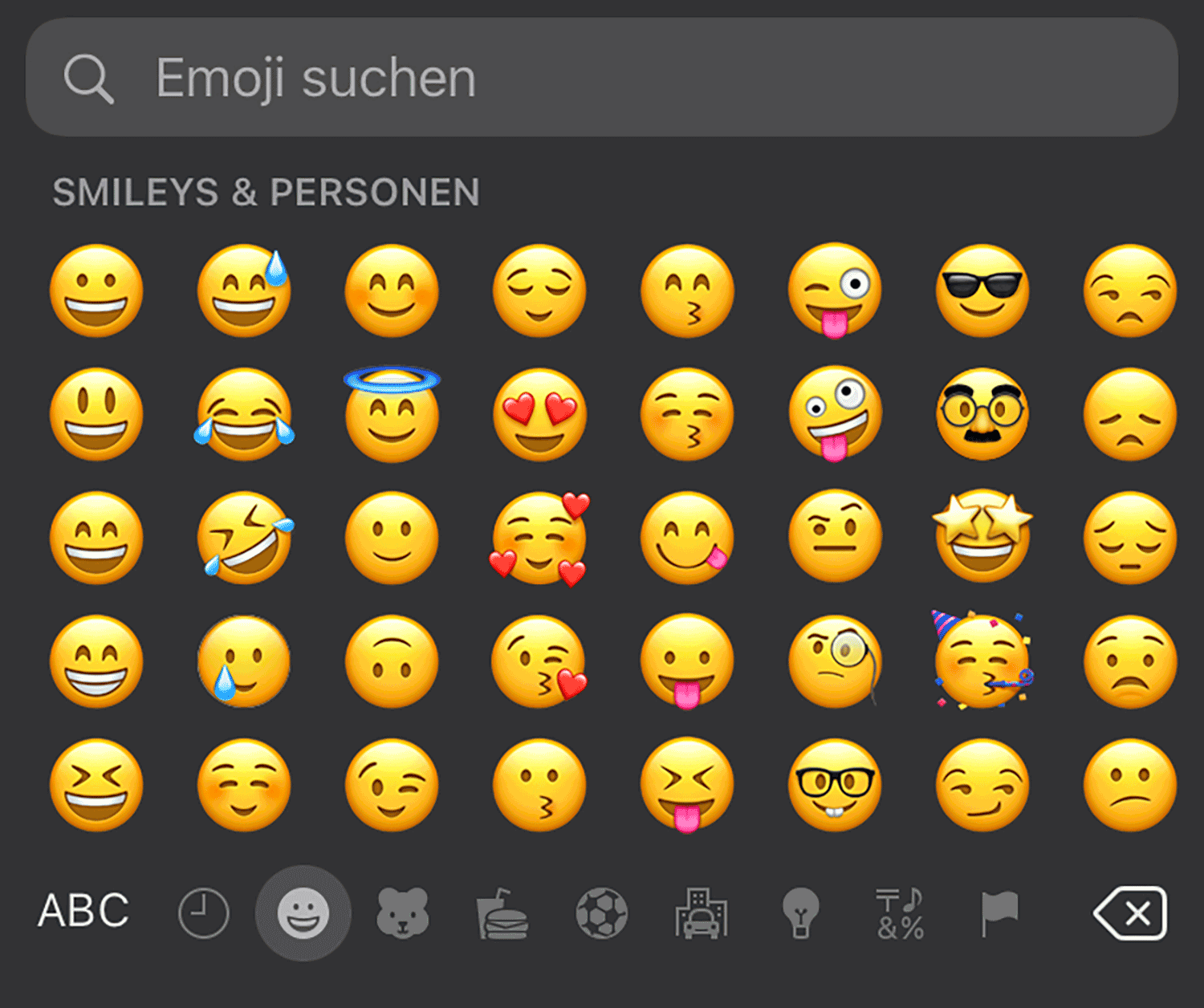
Emoji access on iOS

