Skip to content

Typography Journal

Articles from the field of typography.
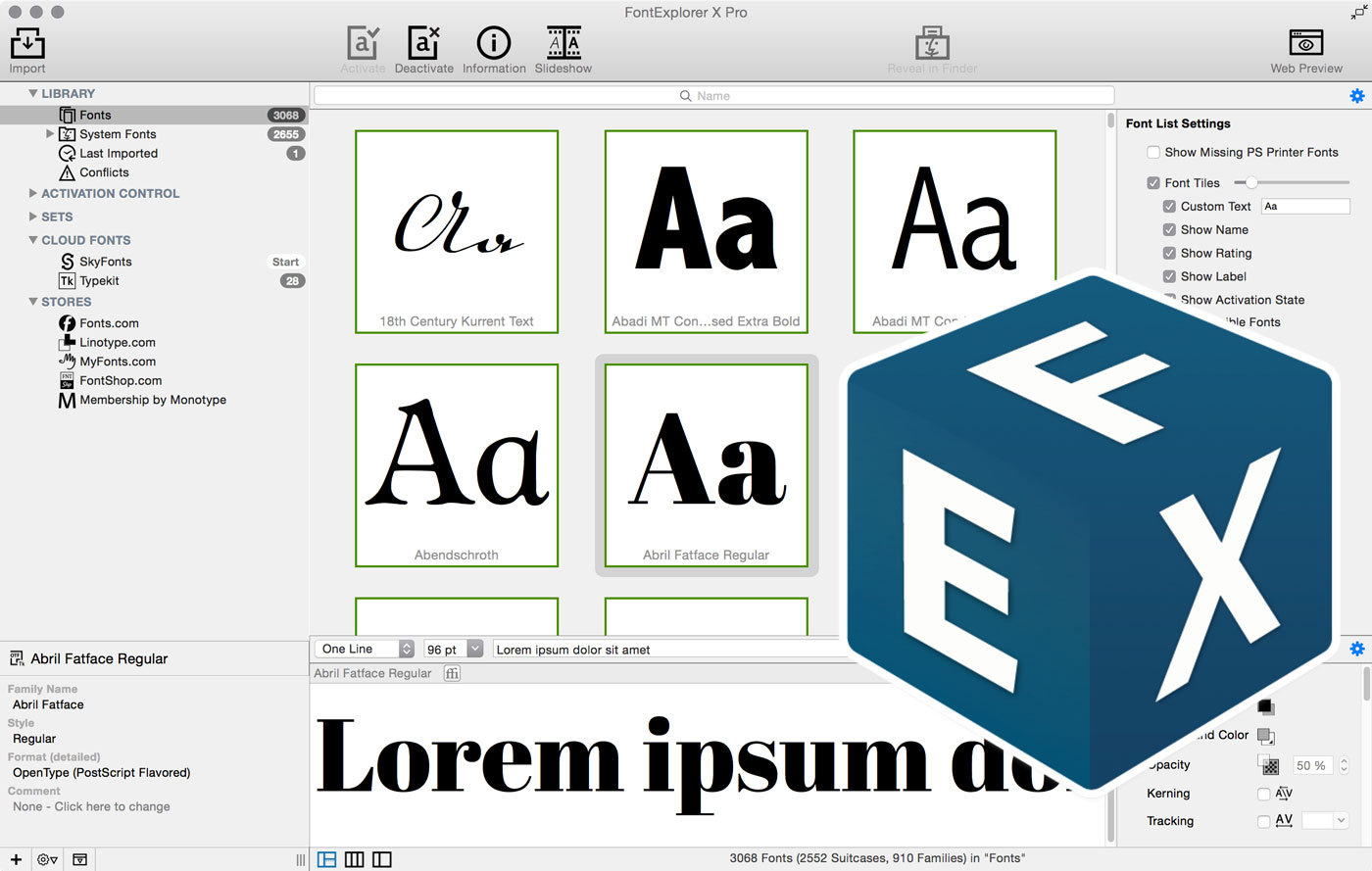
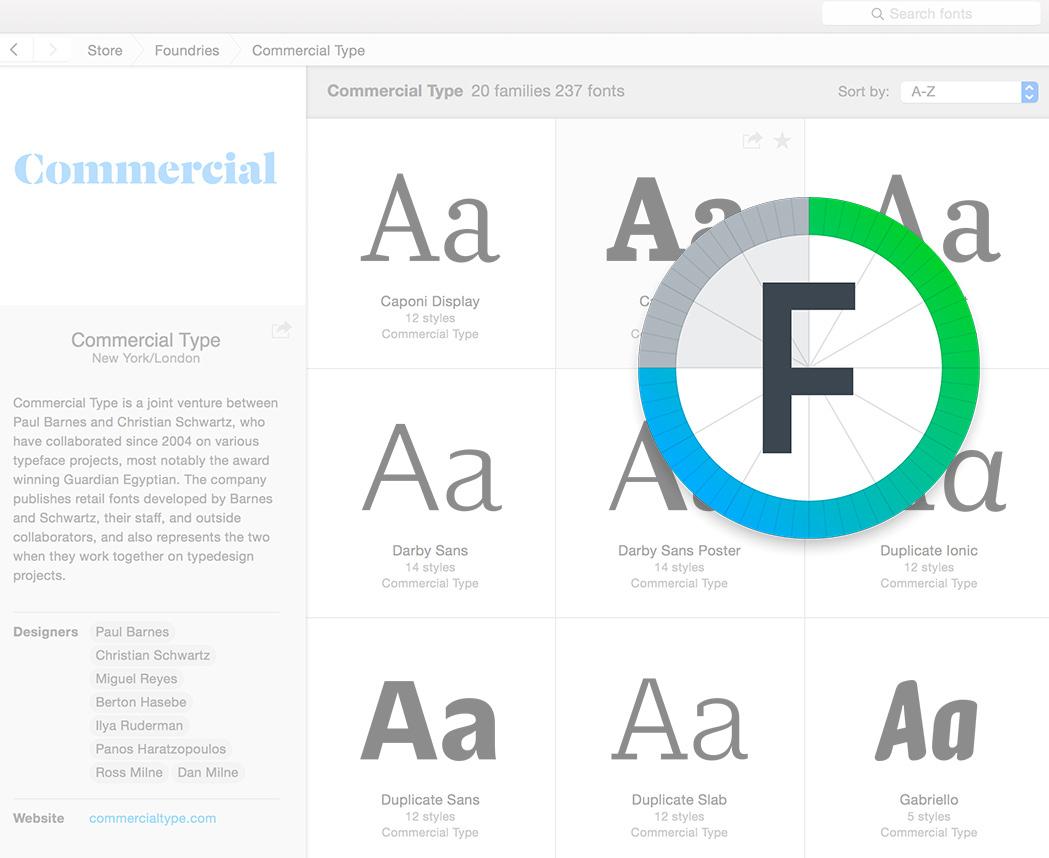
left: old version; right: FontExplorer X Pro 5
The colorful icons of the previous version were replaced by black ones.  The font list can now also be presented in a tile view with custom text. 
The auto-activation plugin were updated and now also support the 2015 version of Adobe’ Creative Cloud and QuarkXPress.  The glyph views were updated to show the all characters of Unicode version 7. Viewing and organizing webfonts was updated to also support the WOFF 2 format. Fonts from the web services Skyfonts and Typekit can be viewed and managed within FontExplorer X Pro.  The web shops/services fonts.com, linotype.com, myfonts.com, fontshop.com and Monotype Membership can be directly accessed within the app. Font downloads are then intercepted and taken over into the app. 
FontExplorer X Pro 5 can be bought at fontexplorerx.com. Updates from version 4.x are available at a reduced price and free when bought after April 1, 2015.
Emoji Levels & Presentations
With Unicode 6 several hundred code points were added to the Unicode standard to encode the Japanese symbols. But in theory, one could claim, that Unicode never really “encoded Emoji”. Instead, the Unicode consortium encoded regular (symbol) characters, which companies such as Apple and Microsoft just happens to have displayed as full color images in their software. With Unicode 8 this changes. 
Now the standard makes clear recommendations about whether a symbol should be treated as Emoji or text symbol (i.e. as a one-color symbol that takes on the properties—like color—of the surrounding text). There are also two variation selectors, which can be used to change the default presentation style within a text. If you add them behind a symbol, you can force an Emoji or text output (if supported).
U+FE0E VARIATION SELECTOR-15 (VS15) for a text presentation U+FE0F VARIATION SELECTOR-16 (VS16) for an emoji presentation
In addition to the presentation style, Unicode 8 now also defines default Emoji sets. “Level 1 Emoji” are those with a broad support among vendors at present. They include over 700 of the original Japanese symbols, as well as additional characters like the ones from the Unicode range “Transportation and Map Symbols”.  
All other Emoji are “Level 2 Emoji”. They might not have a color representation yet or might be missing completely in current Emoji fonts, but they are supposed to be shown as Emoji in the future. 
There is now a total of 1281 Emoji in Unicode 8. Typography.Guru has a section named List of Emoji Codes and Meanings dedicated to show the details of every Emoji character. 
New Emoji in Unicode 8
A total of 41 new Emoji were added to Unicode 8 from these categories:
Emoji modifiers
U+1F3FB EMOJI MODIFIER FITZPATRICK TYPE-1-2 U+1F3FC EMOJI MODIFIER FITZPATRICK TYPE-3 U+1F3FD EMOJI MODIFIER FITZPATRICK TYPE-4 U+1F3FE EMOJI MODIFIER FITZPATRICK TYPE-5 U+1F3FF EMOJI MODIFIER FITZPATRICK TYPE-6
Faces, Hands, and Zodiac Symbols
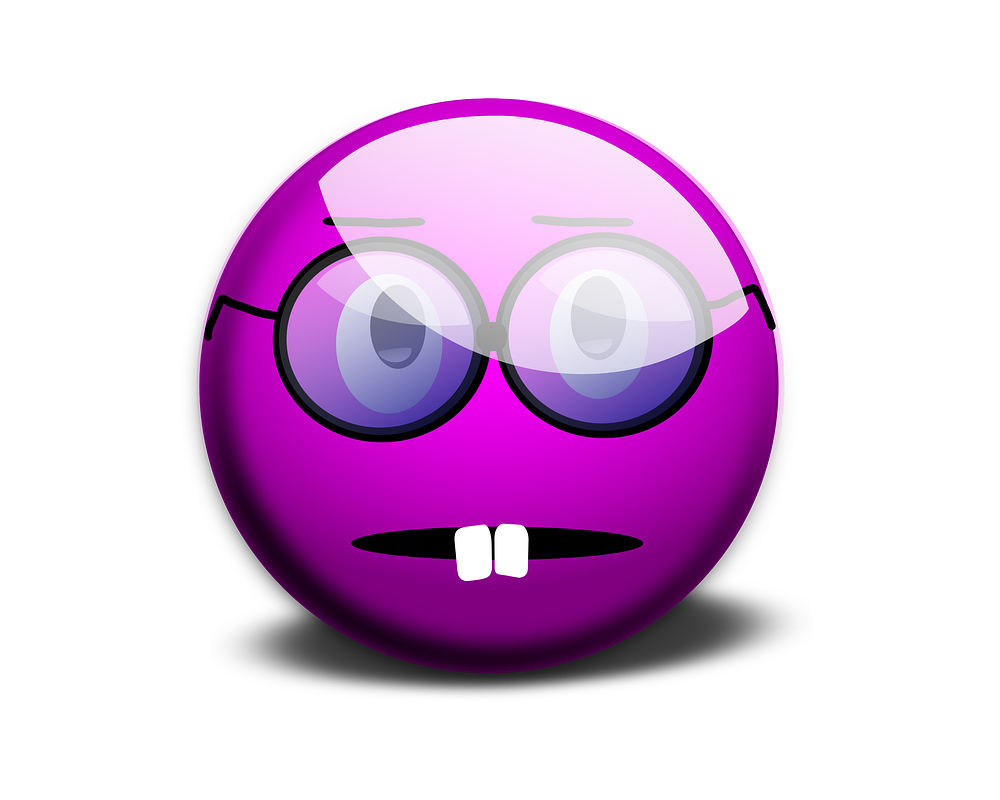
U+1F910 ZIPPER-MOUTH FACE U+1F911 MONEY-MOUTH FACE U+1F912 FACE WITH THERMOMETER U+1F913 NERD FACE U+1F914 THINKING FACE U+1F644 FACE WITH ROLLING EYES U+1F643 UPSIDE-DOWN FACE U+1F915 FACE WITH HEAD-BANDAGE U+1F916 ROBOT FACE U+1F917 HUGGING FACE U+1F918 SIGN OF THE HORNS U+1F980 CRAB (also Cancer) U+1F982 SCORPION (also Scorpio) U+1F981 LION FACE (also Leo) U+1F3F9 BOW AND ARROW (also Sagittarius) U+1F3FA AMPHORA (also Aquarius)
Symbols of Religious Significance
U+1F6D0 PLACE OF WORSHIP U+1F54B KAABA U+1F54C MOSQUE U+1F54D SYNAGOGUE U+1F54E MENORAH WITH NINE BRANCHES U+1F4FF PRAYER BEADS
Missing Top Sports Symbols
U+1F3CF CRICKET BAT AND BALL U+1F3D0 VOLLEYBALL U+1F3D1 FIELD HOCKEY STICK AND BALL U+1F3D2 ICE HOCKEY STICK AND PUCK U+1F3D3 TABLE TENNIS PADDLE AND BALL U+1F3F8 BADMINTON RACQUET AND SHUTTLECOCK
Most Popularly Requested Emoji
U+1F32D HOT DOG U+1F32E TACO U+1F32F BURRITO U+1F9C0 CHEESE WEDGE U+1F37F POPCORN U+1F37E BOTTLE WITH POPPING CORK U+1F983 TURKEY U+1F984 UNICORN FACE Diversity
Symbol characters are meant to be, well, symbolic. They are used to convey a certain meaning, while neglecting all other specifics. For example, the symbol for “woman” might be shown with a skirt and long hair. But that is just meant to help to convey the meaning “woman”, not to limit the meaning to “woman with long hair wearing skirts”. In the same way, the skin color of human Emoji symbols could be understood as one of dozens of such negligible features. And yet, for years people have been asking for Emoji with other skin colors. So Unicode now includes a range of skin color modifiers. These special characters are added behind an Emoji, and if supported, will replace the default Emoji style with one of five representations using a specific skin color. 

When an Emoji for this combination of default symbol + color variation does not exist, both characters are shown side by side, just as they are encoded within the text. 
Combined (left) and separated view (right) of human Emoji + skin color modifier 5. 
With skin colors not being a negligible feature of human Emoji anymore, the default light skin color of existing Emoji sets had to change. Unicode now recommends a non-realistic color such as the yellow (#FFCC22) used for smileys, blue (#3399CC) or grey (#CCCCCC). Apple has already shipped such symbols with their latest iOS and Mac OS releases using a non-realistic yellow skin tone. Microsoft will use grey for their color font Emoji. 

Multi-person groupings may explicitly indicate gender (like “Man and Woman holding Hands”), others may not (like “family”). In combination with skin colors, such groupings lead to an endless amount of possibilities, which cannot be encoded as individual characters. The solution is therefore: character sequences. When the special character ZERO WIDTH JOINER (U+200D) is put between Emoji, it indicates, that these symbols are meant to be shown as one glyph if possible. 

Apple’s sets of family and couple Emoji already make use of character sequences. 
 
But even with these added options for diversity, the political correctness debates around Unicode Emoji probably won’t stop anytime soon. The more specific the symbols get, the more possibilities arise to miss certain variations or to feel offended by the specific display of existing ones. And so for Unicode 9 there is already a discussion about adding more gender variations such as “Mother Christmas”. As the Unicode Emoji Tech Report correctly notes: “… there are many other types of diversity in human appearance besides different skin tones: Different hair styles and color, use of eyeglasses, various kinds of facial hair, different body shapes, different headwear, and so on. It is beyond the scope of Unicode to provide an encoding-based mechanism for representing every aspect of human appearance diversity that emoji users might want to indicate. The best approach for communicating very specific human images—or any type of image in which preservation of specific appearance is very important—is the use of embedded graphics …”
I am certainly curious what the future will hold in this regard. Does Unicode become a museum of things that were relevant for short passages of times (e.g. FAX MACHINE—U+1F4E0, SELFIE—U+1F933)? Or do we move away from this approach and will be able to transmit graphics reliably in a completely different way?
 
Related Links:
Typography.Guru List of Emoji Codes & Meanings Unicode Technical Report #51 with all the technical details about Emoji in the latest release of the Unicode standard
The “black” in the English term blackletter refers to usually very dark appearance of these kind of typefaces. But this appearance isn’t really the defining characteristic. The German term “Gebrochene Schrift” (broken script) says it much better. In blackletter fonts, elements which used to be rounded in preceding Latin designs were broken down to individual line segments with emphasised sharp corners. And since this type style developed somewhat independently of the Roman type style we use until today, blackletter developed some letter skeletons, which greatly differ from the Roman design and make them hard to read for many today. 
In Germany blackletter fonts were in broad use until the middle of the 20th century. The most used category of blackletter fonts was Fraktur—a much more open and legible design than the original dark and narrow blackletter fonts in medieval books. Fraktur fonts were available in a great variety of designs—from thin and delicate calligraphic typefaces to bold and geometric. But they all shared one characteristic: the typical change of weight caused by the use of a broad-nip pen. This feature could almost be understood as a necessity to make blackletter fonts work. Experimental monolinear blackletter fonts appeared occasionally like in this booklet for sign painters from a German pen maker who also sold pens for monolinear writing. 


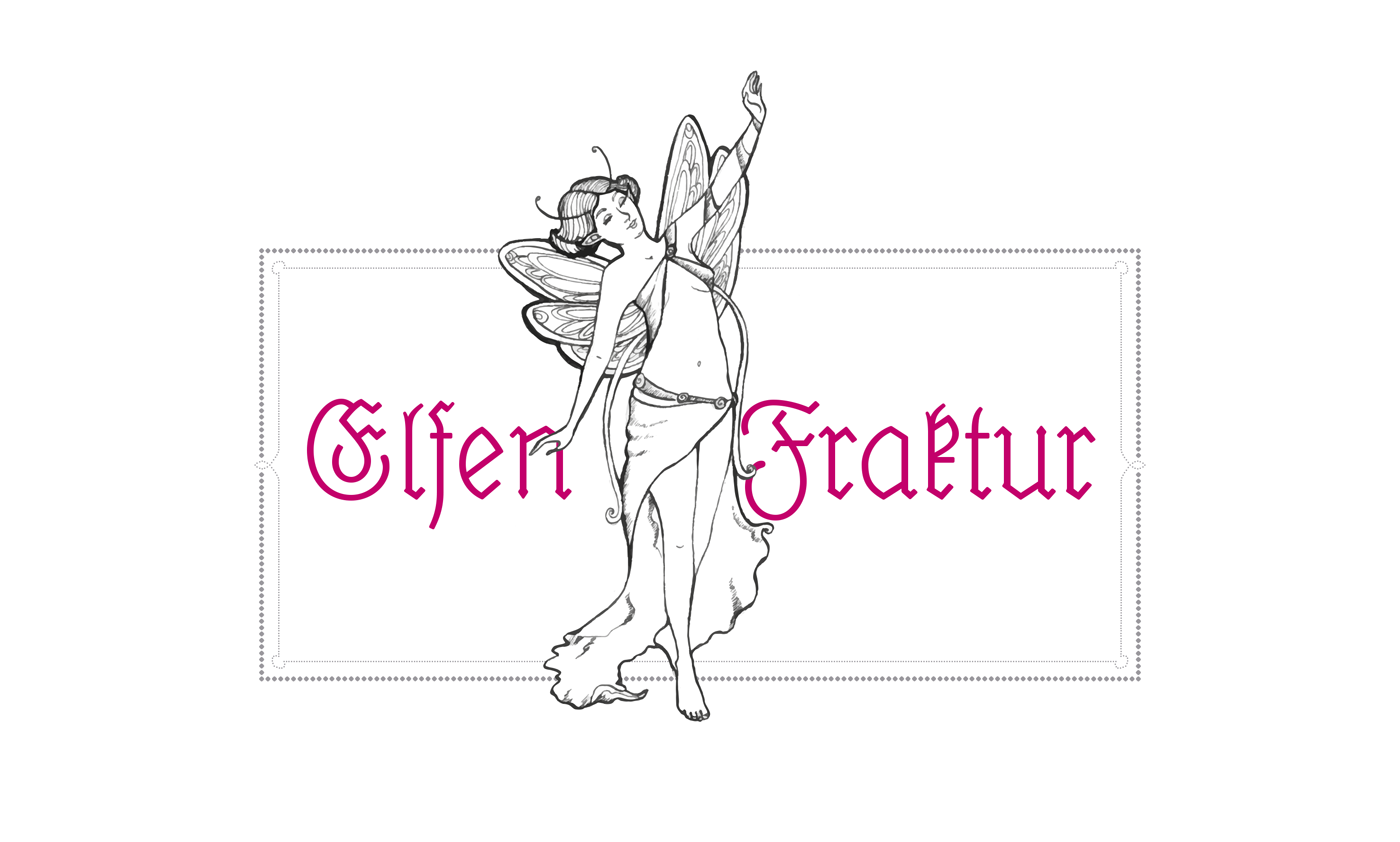
But such designs rarely made it into typefaces. The only two know designs appeared around 1920: The wobbly Lehmann-Fraktur and Elfen-Fraktur from an otherwise unknown designer listed as M Beck. 

Elfen-Fraktur was originally published by the foundry H. Hoffmeister, which was later absorbed by D. Stempel, one of the largest type foundries in Europe at that time. The typeface then appeared in Stempel’s catalogue of 1925—with around 1200 pages one of the biggest type specimen book ever produced. 

Elfen-Fraktur in the 1925 Stempel catalog
When I got my copy of this book and browsed through it, Elfen-Fraktur was the one design that fascinated me the most—but more for it’s uniqueness and peculiarities than its quality. It was by no means a perfect design. It’s easy to see how the designer struggled with the design concept. While it has a monolinear look, it actually can’t be written. The designer has added little corners and weight changes throughout the design to make it work as a blackletter typefaces. 

An ad in Elfen-Fraktur, published in a German newspaper in 1928
Even with the huge market share of Stempel, the typeface wasn’t used very often and is almost forgotten today. So a while ago I began to digitize and revamp it. The new version of Elfen-Fraktur is now available via FDI Type. But I didn’t actually trace the outlines to make a perfect copy of the original. Instead, I used the specialty of the original design and drew all letter from scratch as monolinear letters and then refined the details. 

The FDI version of Elfen-Fraktur comes in two versions. Style A sticks rather close to the original letter skeletons. In combination with the discretionary ligatures it is perfect for setting German texts according to traditional blackletter and orthography rules. Style B contains alternative letters which make the typeface more legible for readers, who don’t have experience in reading Fraktur. Both sets are otherwise identical and contain the full Western character set (Win1252/Mac Roman). 

A free bonus is a set of 22 decorative border elements, which can be used in combination with Elfen-Fraktur or any other typeface. The border elements can directly be typed on the keyboard (letters a to v). The size of the elements (including the space character) is based on the em-square. So by keeping the tracking to zero and the line height identical to the font size the border elements will always connect seamlessly. 

Related links:
Elfen-Fraktur at FDI Type Elfen-Fraktur at MyFonts
Apples search for a fitting and consistent typography is an ongoing quest. Lucida Grande defined the look of Mac OS X since 2001, while the iPhone uses Helvetica. But Apple’s corporate typeface used in ads, on the web or on packaging is a version of Myriad. Lately, Mac OS X took over Helvetica from iOS, while a completely new typeface appeared for the Apple Watch: San Francisco. With the upcoming releases of Mac OS X and iOS yet another change was announced. The watch font is now renamed to “SF Compact” and iOS and Mac OS will use a new branch of the San Francisco type family called “SF”. 

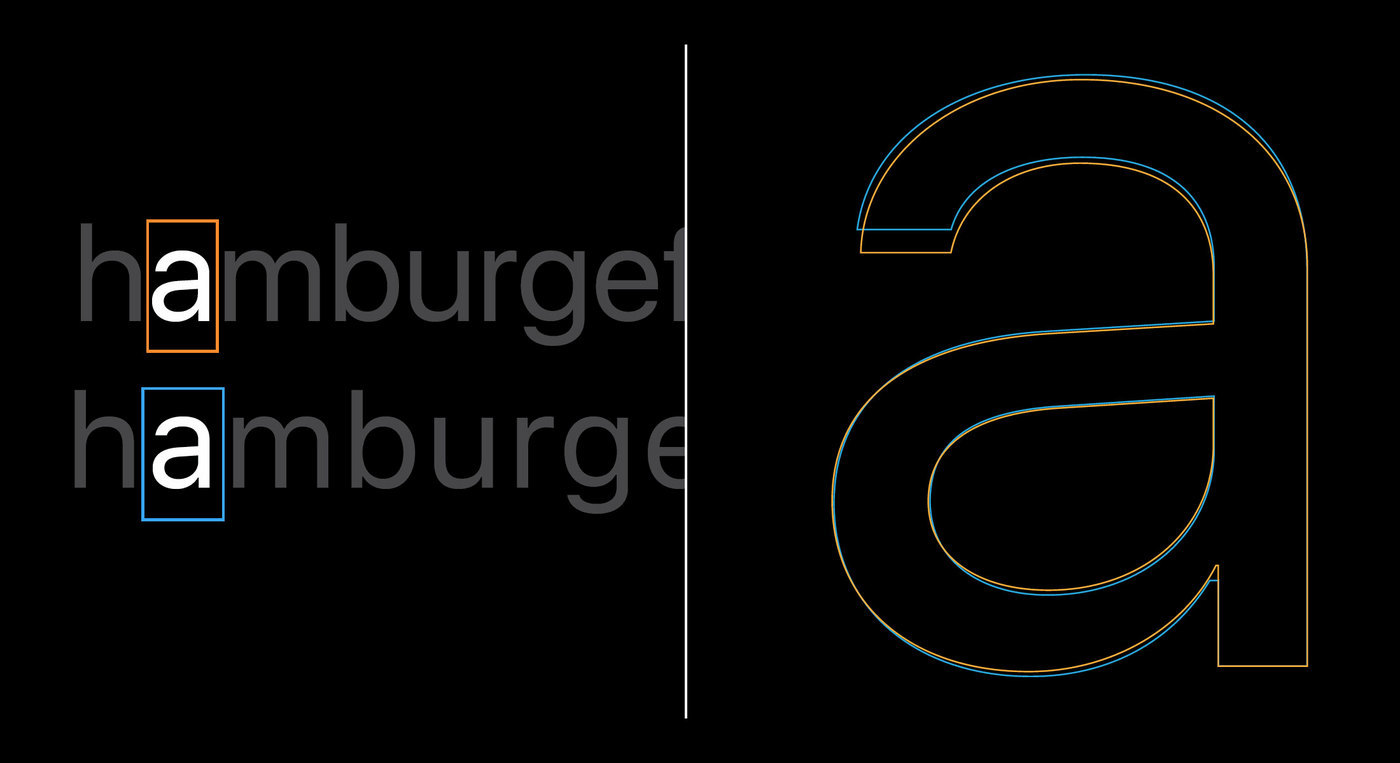
The SF branch is a compromise between the current use of Helvetica and Apples own watch font design. SF uses the same metrics and proportions as Helvetica, but borrows design features from the watch font. The main difference between SF and SF Compact is the treatment of the curves. While they are rounded in the SF branch, they are rather flat in the SF Compact branch. This gives the latter a more legible appearance on smaller screens, such as on the Apple Watch. 
The fonts currently cover extended Latin, Cyrillic and Greek. Both branches of the San Francisco type family come with optical sizes. There are 6 weights (including italics) for the text sub-family and 11 weights for the display sub-family (without italics). The correct choice for the optical sizes and the tracking values can be made automatically by the operating system. 

The fonts are also equipped with smart font replacement options like subscript/superscript figures, different figure sets (including variations for the figures 6 and 9), as well as special versions of punctuation and math characters which better suit all-caps or number settings. 
Numbers with a centered colon
Conclusion:
It’s good to see that Apple now has in-house type designers who create this extensive family and pay great attention to details. I also like that advanced features such as optical sizes are not only available in the font family, but can be automatically applied throughout the system. The look of the typeface itself is unfortunately rather bland. Apple is known for creating trends rather than following them. This design mix of typefaces such as Helvetica or Akkurat can’t really achieve this. It doesn’t have its own clear voice and doesn’t separate Apple’s UI from that of competitors such as Google who use a pretty similar font.
An open question is the use of Myriad as a corporate font. Mixing Myriad and San Francisco doesn’t seem like a good idea. The fonts are different, but not different enough to be a good mix. So will San Francisco become the corporate font as well someday? The great variety of styles would certainly allow it. 
 
The full presentation (around 30 minutes) from the developer conferenced can be watched here. The fonts are available free of charge for Apple developers. But I would like to point out, that the fonts are currently only licensed for the development of apps for Apple devices. The fact that you might find these fonts for free on certain websites does not mean that you can use them like regular freeware or Open Source fonts. 
The concept of Fontstand is pretty simple: It offers desktop fonts only, which can be tested free of charge for one hour in every app on your computer. After that they can be rented per month for 10% of the regular retail price. If you continue to use the font, it will have been paid in full after a year and you can continue to use it as a regular desktop font. 

Fontstand solves the typical dilemma of professional font users: how can you test a font without paying for it first and without even knowing, if your client will approve of the font choice. The big players like Monotype and Adobe offer subscription models for this. You pay a fee and can use a complete library with thousands of fonts. But there is a catch: You need to permanently pay the rental fee for years to come if you want to continue using your fonts. 
But that is not the case with Fontstand. With this service you have the advantages of testing fonts free of charge and using them cheaply for a limited time, but you also have the benefit of getting a regular desktop font license after a year. 

Fontstand does not use a web shop in the browser. You need to run an app on your computer to use it. At the moment it is only available for Mac OS X, but a Windows version will come later. The app also contains the store. You can browse the catalog by font style, foundry or use the search function. There are currently no custom sample texts or glyph tables, but you can install the fonts with one click and then test them in your local apps. 

Conclusion: 
Even in this early stage, Fontstand is already a very convincing service. It offers advantages over the regular web shops, but without the disadvantages of most rental services. It’s also interesting to see who is behind the site and which foundries take part in this service. The concept was developed by Peter Biľak (Typotheque) and Andrej Krátky and the foundries are a selection of the finest indie labels: Type Together, Storm Type, House Industries, Typofonderie, Commercial Type, Bold Monday and so on. So the service feels like an answer of the independent labels to the offers of the big shareholder companies. And it looks like this service will be a great benefit for font users and foundries alike. 
More information and the Mac OS download are available here: https://fontstand.com
1. To begin with, please tell our readers a little bit about yourself and how you came to the field of type design.
I came to type design through graphic and editorial design. My training was first and foremost focused on the design of printed objects. I later got into digital techniques because the first thing that matters to me is content, not so much the medium you use. Before studying applied arts, I trained in science and engineering but was never very proficient at it, so I decided to leave that behind when I started doing graphic design. But a couple of years later, doing something entirely different highlighted the fact that it wasn’t science engineering I had wished to leave behind, but school … So my scientific and technical curiosity caught up with me and I soon realized I actually loved science as much as design. That’s when I had an epiphany about designing type—also because I’m never happier than when I can design ‘basic’ stuff, and by that I don’t mean that type is a simple thing but rather that it is essential to many—if not all–aspects of communication; the foundation of content.

As for how I came to really designing type—that was a long process. I’m only starting to think I’m any good at it, although I drew my first letter in 2007 if my memory serves me well. I love to learn and I’m not afraid by the idea of doing the same thing over and over again until I’m happy with the result, I’m very stubborn this way. So I kept on designing typefaces for my own use, mostly for the books I was paid to design. They weren’t perfect but that is what kept me trying to make them better, all the time. I later came to realize I’ll never be satisfied, but I try not to retain frustration from that fact. I rather use it to drive me.

2. How did the Trianon font project start? What made you interested in exploring that area of modern fonts?
This project started like many others that are still on-going, I fell in love with an idea, which in itself sounds like a bad idea. One day, I received a cheap, badly printed, book from the end of the 1950s. It was a manual aimed at learning how to play chess and the copy I was given must have been the 5th or 6th edition of a title that apparently had some sort of success in France from the 1930s onward. This book was in fact quite unremarkable but I was baffled by the fact that reading it felt a lot nicer than a lot of the books one can read today. The most surprising part to me was that the type used seemed to be a sort of Didone with moderate contrast. I was quite a newbie at that time so I thought—as I had been told—that you could not use a Didone to set text because the appearance was too stark and resulted in uncomfortable reading. While it is true for a lot of the Didones you can get your hands on today, this book offered a nice counter-example. That’s how I set my mind to designing a Didone typeface for text. It was the starting point of a long journey through modern typefaces, which ultimately lead me to look into the works of the Didot family.

3. Tell us a little bit more about the sources you used. Which typefaces or books did you use as a reference? And how much of the Trianon design and its styles is directly inspired by specific sources and how much basically “invented” as an extension of the design.
The first drafts for the typeface that would become Trianon were based on the chess-learning book that got me started, so it was a slightly sturdy and not very delicate Didone. At the beginning, I was still a bit new to drawing type so a lot ofit was pretty clumsy and remained so for quite a while. Over the years, as I was learning more and more about the design and history of type, my interest began leaning towards the more classical Didot forms of which my initial reference was a distant interpretation. This tension, or distance, has always been the defining element of the design of Trianon, oscillating somewhere between the quintessential Didot sources—the accomplished punchcutting of Firmin Didot—and the later and numerous versions of Didot faces that were produced by French foundries for more than a hundred years after that. Among my most expected sources, I have type cut by Firmin Didot in books printed by his sons between 1823 and 1833. During that ten year span, it would seem that Firmin wasn’t very active anymore but it is very likely that the type used by his sons were still of his making. That’s for the classical sources in which I took a lot of inspiration for the italics, a bit less for the upright styles. And among the later sources, there are type speciments from the first half of the 20th century, from the Fonderies Bertrand, Latouche & Buffet, or Deberny (and later Deberny &Peignot), which where useful especially for the heavier weights. In the end, the design is really a loose interpretation of a lot of different sources—all French though—and spanning approximately 150 years. As such, it is really a eulogy of French modern types.

4. You made this family with 4 optical sizes—a feature which is still pretty rare with digital fonts and sometimes even confuses graphic designers because of the amount of styles. What was the importance of making this family with so many optical sizes?
The optical sizes where a by-product of my work. Initially, my design was really the text version and it was mere curiosity that lead me to make a more contrasted version of the text face, just to see what it would produce. As I was happy with the result, I started considering having two sizes. Later on, I stumbled upon examples of small type among Didot faces, down to 5 or 6 points and I loved what was happening with those tiny letters, which definitely had a Didot feel but didn’t have much of the contrast that is generally considered the basic trait of a Didot typeface. That’s when I started experimenting in the other direction—less contrast—which lead to the Caption style.

While I was designing this small optical size, I was growingly intrigued by the fact that the more contrast I took away, the more these letters started showing similarities with some slab serif faces, and that encouraged me to keep on working on this optical size in a way that it could also be used independently as a style on its own, and not just as the low contrast counterpart of the other styles in the type family. 

5. What is the name of the font family based on?
The name is a contribution by Jean-Baptiste Levée, head of Production Type. For more than five years, the working title of the typeface was Bréviaire. I simply took the title of the book that got me started: Bréviaire des Échecs. When I started to discuss the possibility of releasing the typeface with various people, it became obvious that this name was not good enough—too specific, a slightly bit too french (é) and not sounding very good. The name Trianon was actually found in a street of Strasbourg, the city I live and work in. I was strolling along with Jean-Baptiste and we were thinking of names. I think he’s the one who suggested Trianon, and I loved it right away; short, nice sounding syllables and a little French touch (we wanted that) but still internationally relevant. Once we had made the decision, I gave it a second thought and realized some things weren’t quite right about that name, specifically historical accuracy. The name refers to a number of things that are slightly anachronistic with the development of modern faces. Most French people have heard the name Trianon at least once in their life. It is strongly associated with the former French monarchy. Originally, Trianon is the name of a landmark in the vicinity of Paris. Its name came to be known because of two buildings bearing the name of the location the first one was built on; they were commissionned by two French kings, Louis XIV and Louis XV. Those two buildings are called Le Grand Trianon and Le Petit Trianon. The latter is mostly known for having been given to Marie-Antoinette by Louis XVI as a gift. So in fact, the name refers to historical and cultural details preceeding the golden age of the Didot dynasty. Still, I wanted to make this name work because it felt quite right for this typeface. I eventually solved this conundrum and found a way to be satisfied with this slight achronism: the Petit Trianon (1762–1769) was built around the years of Firmin Didot’s birth (1764). It’s a completely arbitrary symbol but I’m very happy with it.

6. Which type design tools did you use to design and handle this complex family?
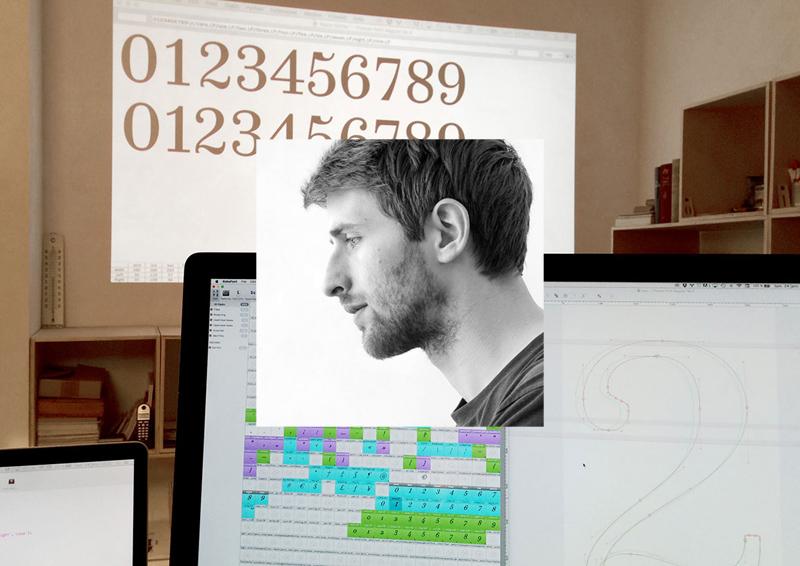
I worked mainly with UFO-based tools: Robofont, Prepolator, Superpolator. The family was finalized in close collaboration with Production Type’s team which was of great help because I could benefit from Jean-Baptiste Levée’s extensive experience in designing and producing huge font families. The Trianon typeface is also a project that lead me to start building my own tools—from little scripts that would do specific tasks (transferring batches of glyphs from a roman master to an italic one and automatically slanting glyphs on the fly) to more complex tools to handle the peculiarities of interpolation for instance. Along the way, I think I wrote more than 40 little scripts and around 3 or 4 tools which I later released on Github.

7. What type of uses is the font family aimed at? Has it been used already?
Yes, the family has been used already. A travel magazine in New York City (Travel+Leisure) is using it as part of its new design, and in France, the typeface has been used for this year’s issue of Graphisme en France, a yearly publication which sums up the current state of a specific branch of graphic design each year. There seems to be a pattern in uses for this type family this far, and in fact, the initial intent was that it should serve editorial design, be it books or periodicals. What I’m really looking forward to is a lot of uses of Trianon as a text face, but I’m really not sure that it’ll be what I’ll see the most … But I also hope for variety. The family can handle a lot of uses, so let’s have them all!

It all started with 128 ASCII characters in the 1960s. In the 1980s a variety of (largely incompatible) 256 character codepages where used. Finally in the early 1990s a new system was invented that should overcome all the limitations and incompatibilities of the older codepages: Unicode—a system where all character of all writing systems are combined into one standard. It took some time, but today Unicode is the default encoding for basically all electronic communications. It doesn’t matter anymore if you use Windows or Mac OS or which font you use to display a text. I can put any of the 113,021 Unicode 7.0 characters on this website and you could safely copy and paste them to a local file (for example). Because every code point is just used once. There is no ambiguity anymore. 

A commercial Latin OpenType will probably have a rather complete character set for the first 256 characters, but there can be any number of unencoded characters as well. As an example: Arno Pro from Adobe includes the character sets for Latin, Greek and Cyrillic together using around 1000 glyph slots. But the fonts contain an additional range of around 1800 unencoded glyphs! 
The basic character set can be accessed directly with the keyboard using the appropriate keyboard layouts. To access Unicode characters that aren’t directly available this way, you can either copy them from certain websites or you can use character map apps for your operating system. Both of these methods are Unicode-based, which makes them a reliable way of accessing any character you want. But what about glyphs that don’t have a Unicode code point in the first place — like stylistic alternates, different figure sets, discretionary ligatures, small caps and certain pictograms? 

The glyphs in a font can be referenced in different ways. The glyph ID simply represents the position of a glyph in the list of all glyphs. But that isn’t a very reliable way to access a character. With the next update of the font the position of a certain glyph in the font might have changed. There is also no semantic meaning to a certain glyph ID. In one font, the ID 1 might be an A, in the next font it might be a space character. The glyph names on the other hand are used for OpenType functionalities. If you activate the ligature feature the combination of f + b can be replaced by an fb ligature which is accessed through its glyph name, e.g. “f_b”. But again, that is font specific. Another font might not have that ligature or use another glyph name. 
The only reliable way for users to access the glyph for a specific character regardless of the font or font version is a Unicode value and that is what most character map apps and character map websites offer. Glyphs without a Unicode value are usually simply omitted.  
To encode or not to encode
Type designers need to choose one of two ways to deal with glyphs that don’t have an official Unicode code point:
1. Don’t encode them at all. 
This is the recommended way from a semantical and technical point of view. A small caps letter is just a visual/stylistic alternative to a lowercase letter. So it is accessed by typing the lowercase letter and then applying a styling, which activates the OpenType feature to switch out the lowercase letter with the small caps letter while retaining the character encoding of the lowercase letter. The replacement rule is set up as an OpenType feature within the font and the small caps character will be accessed only through an arbitrary glyph name, not a standardised Unicode value. 
The downside of this approach is: The app you are using needs to support the specific OpenType features or these glyphs will be inaccessible. Even though OpenType has been around for many years now, this is still a problem. People buy commercial fonts every day only to find out, that all the advertised ligatures and alternative characters cannot be accessed in their word processor or that their favourite browser cannot show the figure set they would like to use. 
2. Use PUA codes
Instead of relying on OpenType, glyphs that don’t match an existing Unicode character can also be assigned a Unicode value. For this purpose, Unicode has a so-called Private Use Area (PUA). A type designer can pick any Unicode value from that range and apply it to any glyph where no official Unicode value is available. When this is done, the glyph can appear in character map tools and can then be copied & pasted just like any other character. 
But when this technique is used, the PUA code point will only work for that specific font. Another font might show a completely different glyph (or nothing at all) and proper indexing or hyphenation will also fail, because these PUA characters have no standardised semantic meaning. 

So when you are looking for glyphs in a font, that don’t fall in the category of official Unicode characters, you need to check first which of the above methods is used. PUA characters might allow you to access any glyph in any app more easily, but you should keep in mind that their non-sematic encoding can cause problems. If you use PUA codes to access pictograms of a signage font for a vinyl cut you might be fine. But if you want to publish electronic documents which should be indexed, shared or copied, you might want to steer clear of the Private Use Area. 
To access official Unicode characters and PUA characters, you can try the Windows Character Map or alternative tools like PopChar or BabelMap. On Mac OS X the built in Character Viewer is quite handy, but it does not display font-specific PUA characters. For that, you might want to have a look at Ultra Character Map instead. 
Working with unencoded characters
So how should one deal with unencoded glyphs in OpenType fonts? Unfortunately, there is no single app or no single trick, which makes them easily accessible across all apps on your operating system. But here are some recommendations which might be helpful to you. 
Know your type—study the “manual”
When you buy a font, look out for the type specimen PDF and save it with the font. It might not always be easy to find, especially on reseller sites. So visit the designer’s or foundry’s site if necessary. The type specimen PDF will in most cases not only show the full glyph set, but also list the OpenType features to reach unencoded glyphs. You understand the possibilities of specific OpenType fonts much easier this way than by clicking through the OpenType menu of your app. 
This type specimen PDF from Typejockeys explains the OpenType features of Ingeborg
Create your own glyph sheets if needed
There is a nice free tool for Adobe InDesign called Font Table, which can generate an overview of all glyphs in a font. It just tries to access every possible glyph ID and so you get a full overview, which does not rely on Unicode code points. You can then save this glyph table as PDF or print it out. 
The glyph table of Arno Pro made in InDesign with Font Table
Copy Glyph IDs across supported apps (Mac OS only)
It isn’t heavily advertised because it doesn’t work across all apps, but Mac OS X actually allows you to copy & paste unencoded glyphs through their glyph ID. But it only works if both apps you are using support this. In FontBook, switch to the Repertoire view (⌘+2) and the just select and copy the character. You can then paste it to TextEdit for example or some other apps that use Apples text engine. If you use FontExplorer X as font manager you can also copy unencoded glyphs from the info panel of a specific font. And if you want to use this technique frequently you might want to take a look at Ultra Character Map. 
Accessing all those deliberately unencoded ligatures of Canapé? FontExplorer can help you.
Using the Glyphs Panel (InDesign/Illustrator)
If you use Adobe InDesign or Adobe Illustrator it’s very easy to work with unencoded glyphs. Not only do these apps provide a full glyph map, but you can also easily access glyph alternatives or filter the selection to only show the glyph replacements for certain OpenType features. 
Click on the triangles in the glyphs panel of InDesign or Illustrator to show alternative glyphs which will likely not be directly accessible through Unicode values. 
Find you special glyphs easily with the filter menu and double-click on the glyphs to add them to your text. 
The Photoshop trick
While InDesign and Illustrator have a glyphs panel, Photoshop until the current version (CC 2014) does not and the options to activate OpenType features are also extremely limited. So even the unencoded glyphs of many of Adobe’s own Pro fonts might simply be unaccessible in Photoshop. But there is a trick! Photoshop allows you to copy unencoded glyphs from one app — and one app only: Illustrator.  
Create your text in Illustrator and apply OpenType features or select specific glyphs from glyphs panel. Select the text and copy it. Go to Photoshop and paste the text while the text tool is active. Photoshop will paste the text and maintain all glyphs. 

First line: Photoshop default. Second line: Pasted, but still editable text from Illustrator. 
In 1796 Binny & Ronaldson established the first permanent type foundry in the United States. The foundry was also known as The Philadelphia Type Foundry. In 1812 the foundry is supposed to have issued the first type specimen book ever produced in the United States. In 1833—after Binny and Ronaldson had retired—the foundry was purchased by Lawrence Johnson and George F. Smith. It was combined with Lawrence Johnson’s existing stereotype foundry and greatly expanded. In 1845 Johnson brought in three junior partners: Thomas MacKellar, John F. Smith and Richard Smith and in 1897 the foundry took on the name MacKellar, Smiths and Jordon, upon the addition of Peter A. Jordon as a partner.

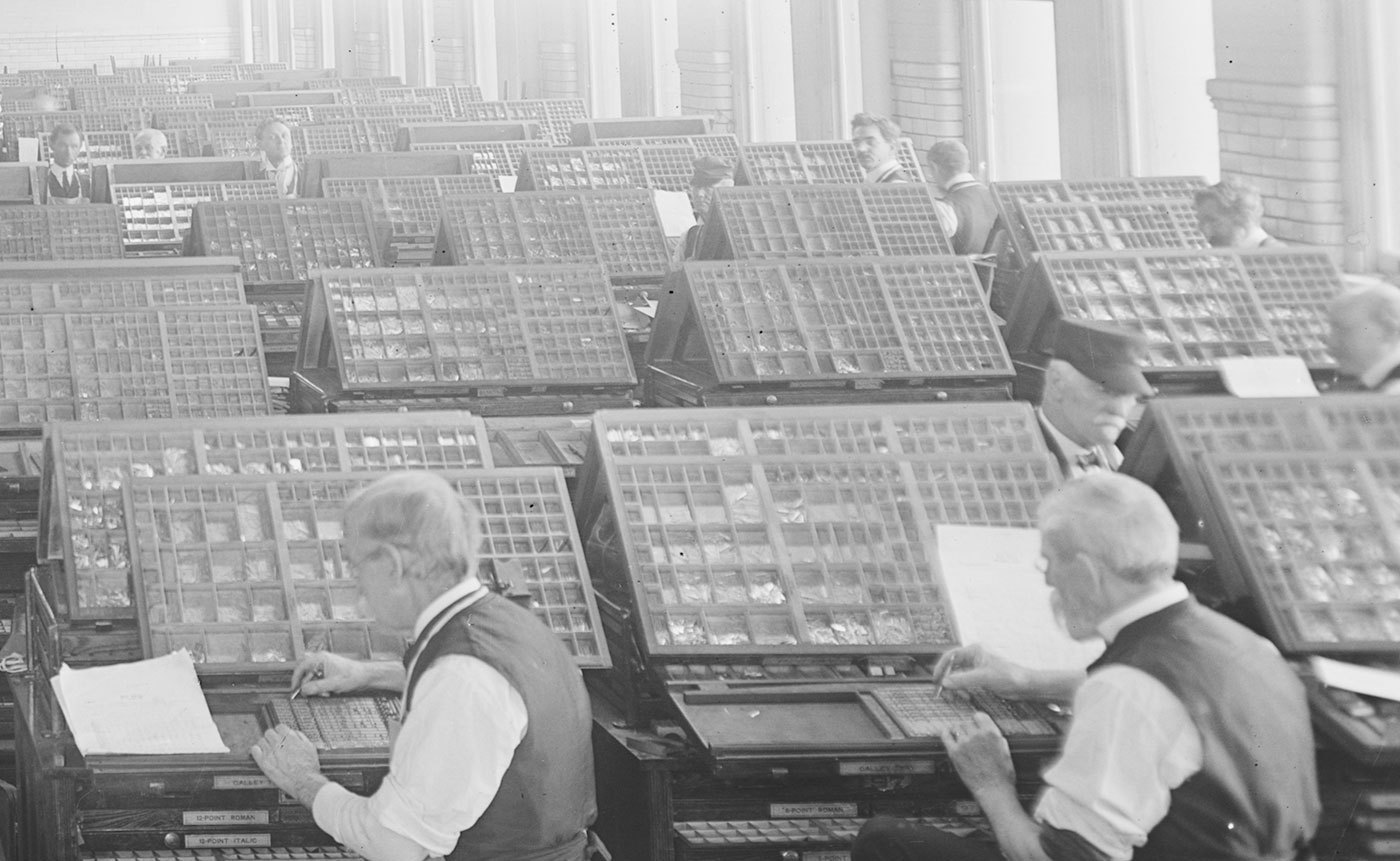
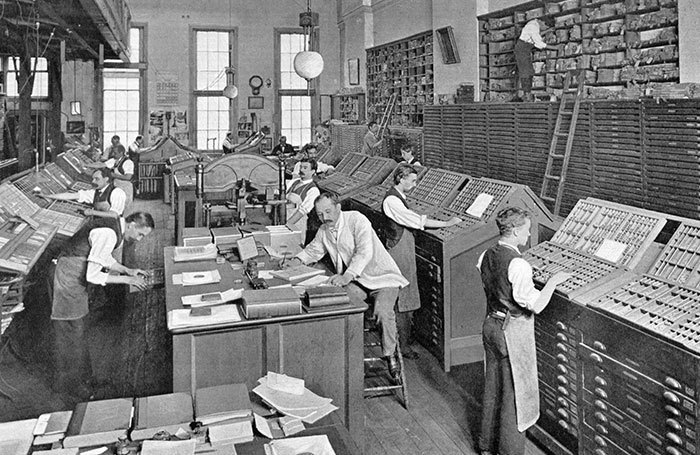
In 1896—100 years after Binny & Ronaldson had founded the company—MacKellar, Smiths and Jordon published a book which celebrated the history of the company. The following images are taken from that book and show how type was made at the end of the 19th century.
 
Metal-mixing Department

Making the Matrix


Making Type-Moulds

Fire-proof Vault for storing Matrices and Moulds

Hand Type-casting Department

Automatic Type-casting Department

Electrotyping


The Foundry Stock Room

Financial and Commercial Departments

Sales and Shipping


Bookkeeping and Correspondence Department


Printing Department


(Original scans by Villanova University published under Creative Commons, BY-SA 3.0)
Just like blackletter, Kurrent is characterized by its abrupt changes of directions. In addition, the letters are almost always connected. Gaps are avoided and also writing over the same stroke again—whether it be on the paper itself or in the air. In cases, where this would happen in the Roman style of cursive writing, Kurrent just uses strokes beside each other.

Standard Kurrent letters as they would appear around 1900
The development of the Kurrent style over more than 500 years

A writing master’s Kurrent (Johann Gottfried Koeppel, 1781)
Kurrent was also a style of the writing masters of the time and they embellished the type with decorative swashes for caps, ascenders and descenders. This gave the style it’s typical proportions with a rather small x-height. With these features fully developed over time, Kurrent became its own branch within the Latin script. The small x-height in connection with the zig-zag patterns and similar letter shapes made the type style more decorative than legible. 
Blackletter and Kurrent in a type specimen from the type foundry of Karl Tauchnitz, 1825

When learning to write German, people would have to learn the Roman block letters and cursive, as well as blackletter and Kurrent, which were the most-used styles for written and printed German. Therefore their colloquial name became “Deutsche Schrift” (German Script). This semantic differentiation between “Latin script” and “German Script” was later misused to support the growing nationalistic ideology at the end of the 19th century and in the first half of the 20th century. The so-called German script was glorified as unique and superior creation of the German people and used as nationalistic symbol. 

German postcards in Kurrent

From the magazine Die zeitgemäße Schrift, which was published between 1928 and 1943

Books in Kurrent from the publisher Alexander Duncker Verlag, Weimar
Sütterlin
At the beginning of the 20th century the teaching of Kurrent was reformed. The proportions of Kurrent in connection with the influence of the steel pen were neither very legible nor a good foundation for a characteristic personal hand-writing style. The German graphic designer Ludwig Sütterlin developed a set of reformed alphabets for the ministry of culture of the state of Prussia. The Kurrent alphabet was introduced in 1915. In the 1930s it had become the dominant writing style for teaching to write German. Even though Ludwig Sütterlin had also created a Latin alphabet for schools, his name became a synonym for his the Kurrent style. 
Sütterlin writing in a children’s cook book
Sütterlin did not try to invent new letters. Instead he modified the existing Kurrent style to make it easier to write and read. The general design of the letters remained basically unchanged. But the proportions were changed to a simple and more legible 1×1×1 ratio (ascender/x-height/descender). Beginners now wrote the letters upright and with a Redis pen without any pressure modulation while writing. 

Beginner’s Sütterlin alphabet 
The use of Sütterlin and blackletter typefaces was actively supported and even demanded, when the Nazis gained power in 1933. The publishers of school books had to use blackletter typefaces and had to focus on Kurrent writing—Jewish publishers on the other hand were not allowed to use any so-called “German typefaces”. So during the 1930s blackletter and Kurrent writing were on the rise again and the political connotations of this use became more prominent. 
Sütterlin store signage (“Edelmann”)
A children’s book from 1945

Because of their connections, Kurrent and Sütterlin were not easy to be designed as metal typefaces, but they were offered and used nevertheless. 
 
Offenbacher Script
The famous German calligrapher and type designer Rudolf Koch also got in the game and developed his own style of Kurrent writing: It was published in 1927 and was called Offenbacher Schrift. Koch wanted a script that was not only easy to write, but it should also allow for some artistic quality and freedom. The design was much more lively than Sütterlin’s Kurrent alphabet and was introduced in schools in the state of Hesse. But despite it’s good reputation in the field of typography and calligraphy, the writing style of Rudolf Koch wasn’t widely adopted.   

In 1941, after years of promoting the typical German type styles, things changed from one day to the next. The Nazis had realized, that they couldn’t easily force their type styles onto the people in the conquered territories. And the German metal typefaces had to be shipped throughout Europe just to print them, which was rather expensive. So the Nazis took a pragmatic approach: they invented a Jewish connection to the development of blackletter typefaces and with that banned all “German typefaces”. Now the Roman block letters and cursive were proposed as Normalschrift (“standard script”). After that, blackletter and Kurrent quickly fell out of use and were removed from the school curriculum. And with that, hundreds of years of handwritten German became illegible to the general public. 

Important Information

We are placing functional cookies on your device to help make this website better.

Account

Navigation

Search

Search

Configure browser push notifications

Chrome (Android)
  1. Tap the lock icon next to the address bar.
  2. Tap Permissions → Notifications.
  3. Adjust your preference.
Chrome (Desktop)
  1. Click the padlock icon in the address bar.
  2. Select Site settings.
  3. Find Notifications and adjust your preference.